Recently, I worked on an interesting problem. Datasource I was working with was a SharePoint list, working with SharePoint lists always turns out to be a difficult task than I first assumed. On top of that, with this particular data source; data was coming as semicolon delimited text., there were many columns like Mile Stones and Sub Milestones, their related data and so on.
Initially, when I looked at it, I thought, I could just split columns in a jiffy; apparently, I didn’t think through it. To cut a long story short, I had to find a way to split multiple columns into rows at the same time so that I can visualise it in a Gantt chart format.
Split multiple columns into rows in #PowerQuery:
Here is an example dataset. My data looked something like below; the real data set has far too many columns and much more data in each cell.
| Name | Milestones | Sub Milestones |
|---|---|---|
| Prathy | M1; M2; M3; M4; M5 | S1;s2;s3;s4;s5 |
( Well, there must be away, but def, not an easy way)
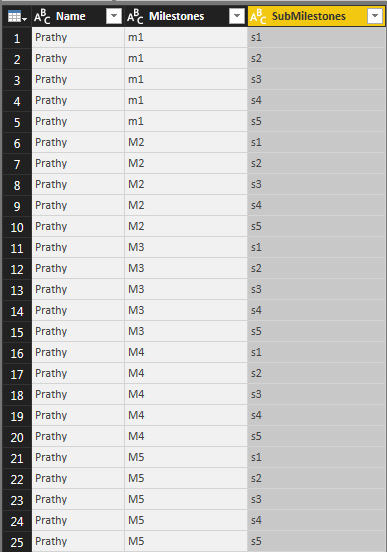
Instead of splitting each column, I Split each row using function Text. Split and added it as a new column. Text. Split returns a list. Later, I used all these lists to create a column using Table. FromColumns() function which returned a table for me. When I expand the table, I have all my columns split nicely the way I want.





Power Query Script:
let
    Source = Table.FromRows(Json.Document(Binary.Decompress(Binary.FromText("i45WCihKLMmoVNJRyjW09jWy9jW29jWx9jUFChQbWhcbWRcbWxebWBebKsXGAgA=",
    BinaryEncoding.Base64),
    Compression.Deflate)),
    let _t = ((type text) meta [Serialized.Text = true])
in
    type table [Name = _t,
    Milestones = _t,
    SubMilestones = _t]),
    #"Changed Type" = Table.TransformColumnTypes(Source,{{"Name",
    type text}, {"Milestones",
    type text}, {"SubMilestones",
    type text}}),
    #"Added Custom" = Table.AddColumn(#"Changed Type", "Custom",
    each Text.Split([Milestones],";")),
    #"Added Custom1" = Table.AddColumn(#"Added Custom", "Custom.1",
    each Text.Split([SubMilestones],";")),
    #"Added Custom2" = Table.AddColumn(#"Added Custom1", "Custom.2",
    each Table.FromColumns({[Custom],[Custom.1]})),
    #"Expanded Custom.2" = Table.ExpandTableColumn(#"Added Custom2", "Custom.2", {"Column1", "Column2"}, {"Column1", "Column2"}),
    #"Removed Other Columns" = Table.SelectColumns(#"Expanded Custom.2",{"Name", "Column1", "Column2"})in #"Removed Other Columns"
I did this with multiple steps for better readability, but you can fit all statements in a single statement as well. I kind of feel like, there must be an inbuilt function which does this, but I haven’t discovered it yet, if you knew, please do let me know 😊
You can download the sample file here – Https://1drv.ms/u/s! Avm7gbgZtlMlvjUCCvb981Ga_AVB
Keep smiling 😊
Prathy