Quick Power BI Tip:
Case: How to add extra / new columns to an existing Power BI file which has CSV as data source?
Solution:
When I was working with Power BI today, first I created a model with my CSV files, while I was doing the report; that’s when I realised I need one more column from the data source. After I had received the new file, I thought I would just refresh the data source and power BI automatically refreshes my query. In fact, Power BI does automatically update my query but what I noticed was, it excluded the last column. When I looked in the advanced editor query looked like my example here
let
    Source = Csv.Document(File.Contents("\\Mac\Home\Desktop\Blog\2.csv"),[Delimiter=",",
    Columns = 2,
    Encoding = 1252,
    QuoteStyle = QuoteStyle.None]),
    #"Promoted Headers" = Table.PromoteHeaders(Source)
in
    #"Promoted Headers"
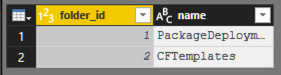
I can see, it’s strictly bringing two columns only. So the tip is to simply get all the columns into the existing Power BI file, just change the number of columns to the new number of columns in the CSV file, which is 3 in my case.
Updated Query:

let
    Source = Csv.Document(File.Contents("\\Mac\Home\Desktop\Blog\3.csv"),[Delimiter=",",
    Columns = 3,
    Encoding = 1252,
    QuoteStyle = QuoteStyle.None]),
    #"Promoted Headers" = Table.PromoteHeaders(Source)
in
    #"Promoted Headers"
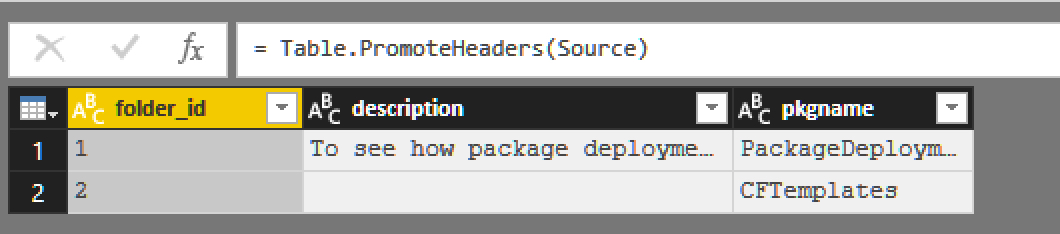
That’s all for now 🙂
Prathy